AFTER PAYMENT
Download, install and activate
Your payment confirmation page provides your serial code and the Windows download. Keep that private confirmation link so you can return to your license.
Save your license
Copy your serial code and choose Download license on your payment confirmation page. Keep these details private.
Download and open Windows Setup
Choose Download Grinder Tunes for Windows on your confirmation page, or use the official download at grindertunes.com. The current file is Grinder-Tunes-0.1.66-Setup-x64.exe. Finish any PCM operation, save your work and use Disconnect & Exit before opening Setup.
If Windows says “Windows protected your PC”
This release does not have a Microsoft-trusted publisher signature. SmartScreen can warn about unsigned or unrecognized apps. That warning alone is not a virus detection, and it does not establish that a file is safe.
Finish Setup
For an official download you have checked and choose to trust, use the illustrated steps if that reputation warning appears. Finish the Setup prompts, then open Grinder Tunes from its desktop shortcut.
Activate your serial
Open License & Settings → Serial Code & Vehicles. Enter your serial and choose Activate Serial. Internet access is required. If you upgraded an existing license, choose Refresh License.
The Windows warning, step by step
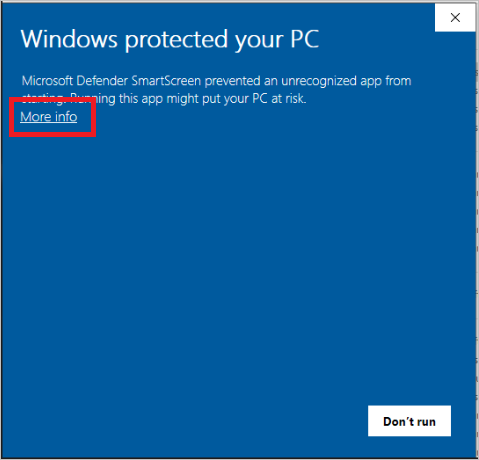
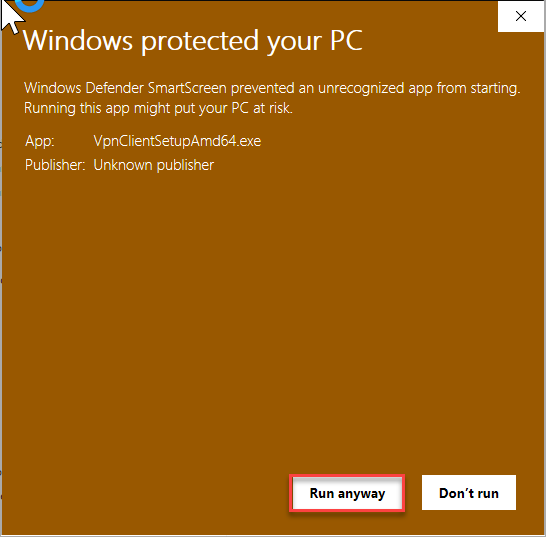
These are real, unaltered Microsoft Learn examples, not screenshots of Grinder Tunes. The second example shows a VPN installer. Your App name should be the Grinder Tunes Setup file. Colors and wording can vary by Windows version. The Windows button is Run anyway, not Download.
1. Select More info
Open the details in the “Windows protected your PC” dialog.
2. Check the app, then Run anyway
Check that App names your Grinder Tunes Setup file (Grinder-Tunes-0.1.66-Setup-x64.exe). Publisher may show Unknown publisher. If you trust this download and the button is offered, select Run anyway.
Need help? Use the support instructions. Include the app version and exact message; keep your serial and payment details private.